IronFlock Appliance
The IronFlock Appliance is a pre-configured, self-contained box that ships with the complete IronFlock system ready to use. It is placed on-site next to the machines it manages — no DMZ, no VPC, no Kubernetes cluster required.
Think of it as IronFlock in a box.
Who It’s For
The Appliance fits two main audiences:
- Machine manufacturers and OEMs who want to deliver digital services together with their machines. Instead of asking the end customer to open their DMZ or provision cloud infrastructure, the manufacturer ships the IronFlock Appliance including their digital service as part of the machine delivery. The customer plugs it into the local network, and it works.
- Small factories with a lean IT team who want a local, turnkey IoT platform without running a full Kubernetes stack. The Appliance arrives pre-configured, installs in minutes, and keeps all data on-site — giving small operations the same dashboards, app management, and device control as a full cloud deployment, with none of the infrastructure overhead.
How It Differs from a Private Cloud Deployment
Both the Appliance and the Private Cloud deployment run IronFlock locally. The key difference is scope and complexity:
- Private Cloud is a full IT installation — it runs in the customer’s DMZ or VPC, managed by the customer’s IT team, and can serve many accounts and projects across the organization.
- Appliance is a compact, turnkey box — it arrives pre-configured, sits on the local network next to the machines, and requires no IT involvement from the customer. It is designed for a limited number of machines.
Getting Started
Spinning up your own factory-local IronFlock instance takes just a few minutes. From a bare Industrial PC to a fully running platform — three steps, one command, no manual configuration.
Requirements
- An Industrial PC with Linux OS (or a virtual machine) with internet access during installation.
- ARM64 or AMD64 architecture.
- Minimum: 2 CPU cores, 2 GB RAM, 24 GB storage. For analytical data histories collected from machines, much larger storage is recommended (e.g. > 500 GB).
Time Synchronization (NTP)
Point the appliance host at a time server it can actually reach before you install. The system clock is not cosmetic: TLS certificate validation, the periodic license re-check, remote access tokens and the timestamp of every data point your machines produce all depend on it. A host that drifts by minutes produces certificate errors, failed logins and history that no longer matches what happened on the shop floor.
In a corporate network the public time servers an operating system ships with are usually unreachable, because outbound NTP on UDP port 123 is blocked at the firewall. Nothing fails loudly — the host simply never synchronizes and drifts away. Ask your IT department for the internal time server and configure it on the host, or have them allow outbound UDP 123.
With systemd-timesyncd (the default on Debian and Ubuntu):
sudo mkdir -p /etc/systemd/timesyncd.conf.d
sudo tee /etc/systemd/timesyncd.conf.d/corporate.conf > /dev/null <<'EOF'
[Time]
NTP=ntp.your-company.com
EOF
sudo systemctl restart systemd-timesyncd
timedatectl status
With chrony:
echo "server ntp.your-company.com iburst" | sudo tee -a /etc/chrony/chrony.conf
sudo systemctl restart chrony
chronyc sources
timedatectl status must report System clock synchronized: yes before you run the installer.
Virtual machines drift faster than physical hardware. If the appliance runs in a VM, enable the hypervisor’s guest time synchronization as well, and still configure NTP inside the guest.
Steps
-
Create an account on ironflock.com.
-
Generate an Instance Key — in the IronFlock UI, open your Profile → Instances, pick the plan that fits your use case, and create a new Instance Key. Copy the key.
-
Run the installer on your appliance host. Open a terminal on your Industrial PC and run the following command. It downloads and configures the IronFlock software and starts the stack — fully unattended:
# Behind a corporate proxy? See the note below before running this.
curl -fsSL https://instance-registry.ironflock.com/dl/appliance/install_ironflock.sh \
  | sudo bash -s -- <your-instance-key>
Replace
<your-instance-key>with the key from step 2.Behind a corporate proxy? If the appliance only reaches the internet through a corporate HTTP proxy, you must supply it on the install command so the Docker daemon can pull the images — otherwise the install stops at the login step. See Behind a Corporate Proxy.
That’s it. Once the installer finishes, the appliance boots the full IronFlock platform and will restart automatically on reboot.
Access Your Instance from ironflock.com
Even though the appliance is a fully local platform, you don’t have to be on the factory network to use it. As long as the appliance has an internet connection and your appliance account is connected to your ironflock.com account (see Linking Accounts), you can switch into your instance directly from the IronFlock cloud UI — no VPN, no port forwarding, no extra tooling.
This means:
- One unified UI — manage your cloud projects and your appliance instances side by side from a single browser tab.
- Work from anywhere — operators, developers, and support staff can reach the appliance over the internet, while all production data and workloads stay local on the appliance.
- Easy multi-site oversight — if you operate several appliances across different factories, each one shows up in your ironflock.com account and is one click away.
When the appliance loses internet access, it keeps running locally and remains reachable from inside the factory network at http://<appliance-host> — only the remote access path is paused until connectivity is back.
Firewall Configuration
If the appliance runs in a restricted local network, allow outbound access to the following IronFlock endpoints so it can reach the cloud. All connections are initiated by the appliance — no inbound ports need to be opened on your firewall.
instance-registry.ironflock.com:443   # installing and updating the IronFlock software and agents; the AI assistant and SMS notifications
cbw.ironflock.com:443                 # managing the appliance remotely from the cloud
web.ironflock.com:443                 # activating and validating the license
registry.ironflock.com:443            # pulling app images when syncing from the public IronFlock Store
regauth.ironflock.com:443             # authenticating those public Store image pulls
app.ironflock.com:7000                # opening app and device user interfaces from the cloud (optional; port 443 behind a proxy)
smtp-proxy.ironflock.com:2525         # sending account and notification emails (optional)
The
registry.ironflock.comandregauth.ironflock.comentries are needed to sync apps from the public IronFlock Store into the local App Store.registry.ironflock.comserves the app images andregauth.ironflock.comissues the token that authorizes each pull — both must be reachable, or the sync (and remote app browsing/installation) fails. If your appliance only ever serves apps you build locally, you can leave them out. An app whose images come from a public registry such as Docker Hub is copied from that registry during the sync, so the appliance needs to reach it as well.
The
app.ironflock.comentry carries the remote-access tunnel that makes the user interfaces of apps and devices reachable while you work on the instance from ironflock.com. A directly connected appliance uses port7000; behind a corporate proxy the installer switches it to port443automatically. If the entry is blocked, nothing fails loudly — those interfaces simply don’t open from the cloud, while they keep working on the local network. Leave it out if you only use the appliance locally.
The
smtp-proxy.ironflock.comentry is only needed if you use the built-in IronFlock email relay. If you configure your own SMTP server, you can leave it out.
Optional destinations. The AI assistant refreshes model and widget metadata from
raw.githubusercontent.comandcdn.jsdelivr.net, and looking up addresses for device locations usesnominatim.openstreetmap.org. All three are optional: if they are blocked, the assistant falls back to its built-in data and address lookup is unavailable.
Time synchronization is not in this list because it does not go to IronFlock: the appliance still needs a working time source. Allow outbound UDP
123to your time servers, or configure your internal time server on the host — see Time Synchronization (NTP).
If your network only reaches the internet through a corporate HTTP proxy, see Behind a Corporate Proxy — the installer can point the Docker daemon at your proxy automatically.
Devices Connecting to the Appliance
Edge devices connect to the appliance, not to the cloud. If devices sit on a different network segment than the appliance, allow the device networks to reach the appliance host on these ports:
<APPLIANCE_HOST>:18080   # device link (WebSocket) — required
<APPLIANCE_HOST>:15001   # local App Store registry (app image pulls) — required
<APPLIANCE_HOST>:15002   # registry authentication (image pull tokens), device agent updates and the device installer — required
<APPLIANCE_HOST>:7000    # remote access to device UIs (optional tunnel feature)
These are direct connections — they must not be routed through a corporate HTTP proxy. If a device’s network forces all traffic through a proxy, either exempt the appliance host from the proxy on the device, or switch the appliance to HTTPS with your corporate certificate: in that mode all device traffic — the device link, image pulls, agent updates, and the remote-access tunnel — moves to a single, proxy-friendly port: 443 on your domain, and works through corporate proxies and strict firewalls without per-port exceptions.
Port
15002also serves device agent updates and the device installer: devices attached to the appliance download agent updates — and new devices the installer — from the appliance itself, never from the internet; in domain mode fromhttps://registry.<APPLIANCE_DOMAIN>/dlon port443instead. See Device Agent Updates and Enrolling Devices Without Internet Access.
Devices need no internet access for normal operation. Everything an attached device does — the device link, app images, agent updates, remote access — goes to the appliance. A device only reaches the internet when it builds an app from a Dockerfile whose base image lives on a public registry, when you publish an app that uses public images, when Docker itself still has to be installed, and — on devices running FlockOS — to check for operating-system updates at
instance-registry.ironflock.com. The apps you deploy may have network needs of their own.
Network Identity for IronFlock Hosts
The appliance and every edge device run IronFlock as an unattended system service: it starts at boot and stays connected around the clock, whether or not anyone is signed in. Firewall and proxy rules for these hosts must therefore be bound to the machine — never to the person who happens to be logged in on it. For edge devices this applies whatever platform they connect to; the device guide covers it in Identity-Aware Firewalls and Proxies.
This matters most on networks with an identity-aware firewall or proxy, which grants access by directory identity instead of by address. If the rule that admits an IronFlock host is tied to a user, the host loses access whenever that user’s session lapses. Connections that are already open keep running while every new one is silently dropped, so the host looks healthy until it next has to connect — then an app install, an agent update or a reconnect fails, and after its next restart the device stays offline.
No exemption from identity enforcement is needed. Ask your network team to identify each host by the identity it actually has:
| Host | Identity to use in the rule |
|---|---|
| Windows edge device joined to your domain | Its computer account — the computer object, or a group such as IronFlock Edge Devices |
| Any other edge device (Linux, FlockOS, Windows outside the domain) and the appliance | A named host object with a reserved IP address, or the identity your network access control (802.1X or MAC authentication) assigns |
| The appliance’s internet access through an authenticating proxy | A dedicated service account for the appliance — see Proxy Authentication |
How this maps to common products:
- Check Point Identity Awareness: in the Access Role, select the machine (computer object or group) instead of users. Machine identities are refreshed by the computer’s own domain activity; if they can lapse on your gateway, use a network object instead.
- Palo Alto Networks User-ID: computer accounts do not produce IP-to-user mappings, so use an address object, a tag or Device-ID.
- Fortinet FSSO and similar directory-based firewalls: use an address object for the host, or the dynamic address your network access control assigns.
- Zscaler, Prisma Access and other cloud security gateways: register the appliance’s address as a server or IoT location (a trusted source), so its traffic is identified by location rather than by user.
Recognizing the failure. A device that stays online but fails every new connection — image pulls, registry logins, reconnects — while pings and its existing session keep working points at an identity rule that has expired, not at the device. Don’t restart the agent until a fresh connection from the device succeeds again: the session that is still open is the only one that works.
License Lifecycle
Your license is tied to one physical Appliance. The same license cannot run a second IronFlock instance on different hardware at the same time. For everyday operation the Appliance runs offline — production data, dashboards, app management, and edge device control all stay local on the box.
When the Appliance Needs Internet
An internet connection is only required at these moments:
- Initial install and Appliance updates — needed anyway to pull software from the IronFlock distribution servers; the license is activated as part of the same step.
- Periodic license re-check — depends on your plan:
- Monthly license: once every 30 days.
- Yearly license: once every 365 days.
- Perpetual license: no periodic re-check — internet is only needed on install and on update.
- License handover to new hardware (see below).
- AI Multi Agent service — only while it is actively in use.
Grace Period and Lock
If a periodic re-check cannot reach the cloud (network outage, transient cloud error), the Appliance enters a 7-day grace period. During the grace, the Appliance keeps running normally and retries automatically.
If seven full days pass without a successful re-check, the Appliance locks itself: most operations are refused and the UI shows the license as invalid. To recover, restore the Appliance’s internet connection and click Revalidate Now in the license panel of your profile on the Appliance UI (the local http://<appliance-host> view, or your instance accessed via ironflock.com).
Moving Your License to New Hardware (Handover)
A license is bound to one machine’s hardware fingerprint. To move it to a different machine, you initiate a handover from your IronFlock cloud profile:
- Open Profile → Instances on ironflock.com.
- Click Reset Hardware Fingerprint on the instance you want to move.
The handover requires the currently bound Appliance to be online. The cloud connects back to it, asks it to revoke itself locally, and only then clears the cloud-side fingerprint. This handshake guarantees the old Appliance cannot keep running while a new one binds — preventing accidental dual-use of the same license.
Once the unlock succeeds:
- Set up the new hardware following the Getting Started steps, using the same instance key.
- The new Appliance validates, binds its fingerprint, and becomes the active device.
When the Old Hardware Is Broken or Inaccessible
If the previously bound Appliance is dead or otherwise unreachable, the handshake will time out and the cloud UI shows appliance_unreachable_contact_support. In that case, contact the IronFlock team — we can clear the binding manually after verifying ownership.
Tip: trigger the handover before retiring the old hardware, while it is still online. The process is much faster — for you and for our support team — when the old Appliance can still be reached.
Local Operation
If you don’t want to keep the appliance online you can always use a browser in the same local network and navigate to the appliance’s IP address or hostname:
http://<appliance-host>Log in with the default credentials:
- Username:
admin - Password:
ironflock
Don’t forget to change the admin credentials on first login.
App Web UIs
When an app on a connected device exposes a web interface, the appliance makes it reachable through its built-in tunnel. Out of the box this needs nothing from corporate IT — each app UI is published over plain HTTP on an automatically-assigned port of the appliance’s address (http://<appliance-host>:<port>), and the IronFlock UI shows the link. Access is still behind the appliance login.
For trusted https:// URLs on a shared corporate network — using a wildcard certificate from your CA, or a TLS-terminating reverse proxy — see App UIs & HTTPS.
Linking Accounts
Create local user accounts for your team by inviting them by email in your project settings on the appliance. The invitation email contains everything the invitee needs:
- A personal connect link — opening it on ironflock.com connects the invitee’s ironflock.com account to the appliance. If they don’t have an ironflock.com account yet, they create one first using the invited email address (the connection is only granted when the two email addresses match). Once connected, the appliance appears in their ironflock.com project selector and they can work on it remotely right away — no manual keys, no local signup required.
- A local signup link — optional: completing the local signup additionally lets them log in directly on the appliance UI (
http://<appliance-host>).
A few things to know:
- Existing local users don’t need a new invitation from the project owner. On the appliance UI they open their Profile and click Email me the connect link in the Connect to ironflock.com section.
- Resending: inviting the same email address again (or clicking the profile button again) issues a fresh connect link. Only the link from the most recent email is valid.
- If the appliance cannot send email — for example on a restricted corporate network that blocks the mail relay — the connect link is shown directly in the UI instead: the inviter copies it and hands it over through any channel. The link must be opened in a browser with internet access.
- Disconnecting: a user can remove the connection at any time on ironflock.com under Profile → Instances → Connected Instances. Re-opening the latest connect link restores it.
The instance owner — the user who created the Instance Key at ironflock.com — is connected to the instance’s local admin account automatically; no invitation is needed for the owner.
Adding Edge Devices
With additional edge devices (i.e., industrial PCs) you can deploy IronFlock apps to more machines and offload app operations from the appliance. The appliance itself already serves as an edge device, but you can attach more edge devices in the same way as you would deploy edge devices in the IronFlock cloud. Just go to Project Settings -> Devices -> New Device and follow the instructions.
Maintenance
To update the IronFlock system on your appliance, the admin can use the update button in the license section of their profile whenever a new version is available. The appliance needs an internet connection to download the update. IronFlock automatically restarts when the update finishes.
Linux OS updates are your responsibility to maintain.
Device Agent Updates
Edge devices attached to the appliance receive updates of the IronFlock device agent from the appliance itself — they never contact instance-registry.ironflock.com and need no internet access for it:
- Plain (IP) mode:
http://<appliance-host>:15002/dl— the same port devices already use for registry tokens. - Domain/TLS mode:
https://registry.<appliance-domain>/dlon port443.
The appliance keeps a local mirror of the agent binaries and refreshes it from https://instance-registry.ironflock.com (already part of the firewall allowlist) every 6 hours, or on demand under Settings → License/Appliance → Device agent updates → Sync now. You can also refresh an appliance’s mirror from the IronFlock cloud, without opening the instance and without logging in to the appliance itself: in cloud Studio go to your Profile → Instances, where every appliance you own has a Device agent updates column showing the agent version its mirror currently serves to devices (with the device installer version beneath it) and the same Sync now action in that cell. The mirror follows the cloud release manifest: every agent version the cloud manifest currently references is kept — for all Linux targets and for Windows — and a version is offered to devices only once it is completely present on the appliance. If the cloud publishes a version that is not yet complete on the appliance, devices keep seeing the previous one.
A device learns the update location from its .flock file (update_url) and, from agent version 0.21.2 onward, also from the appliance on every heartbeat — so a changed appliance IP or a switch to domain mode propagates to the devices automatically.
Devices provisioned before this feature that still run an older agent need their
.flockfile re-downloaded once. On Windows: stop thereagentservice, replace%ProgramData%\IronFlock\Reagent\device.flockwith the new file (saved without a BOM), then start the service again.
Enrolling Devices Without Internet Access
The appliance also mirrors the device installer (ironflock-init) and its install script, so a new edge device that can only reach the appliance can still be enrolled. In Project Settings → Devices → New Device the commands shown already point at the appliance — http://<appliance-host>:15002/dl/... in plain (IP) mode, https://registry.<appliance-domain>/dl/... in domain mode:
- Linux: the one-liner has the shape
curl -sSL <base>/reswarmify/install.sh | IRONFLOCK_DL_BASE=<base> bash. Then copy the device’s.flockfile over and runsudo ./ironflock-init -c <file>.flock.ironflock-inittakes the download base from the.flockfile;--download-baseoverrides it. - Windows: download
reagent.exefrom<base>/re-agent/windows/amd64/latest/reagent.exeand install the service as described under Connect Devices.
Prerequisite for a device without internet access: Docker (Engine + Compose plugin) and the base packages must already be installed. The appliance mirrors IronFlock’s own binaries, not distribution packages —
ironflock-initonly triesget.docker.comwhen Docker is missing.
The installer bucket is refreshed together with the agent mirror — same 6-hour cycle, same Sync now button.
Custom Email Sender (SMTP)
By default, all platform emails — account verification, password recovery, invitations, and alarm notifications — are relayed through the IronFlock cloud SMTP proxy and appear as no-reply@ironflock.com. To make emails appear as sent from your own company, point the appliance at your own SMTP server.
On the appliance host, edit the installer-generated environment file at /opt/ironflock/.env and set the following variables:
SMTP_CONNECTION_URI=smtps://USERNAME:PASSWORD@smtp.your-company.com:465/
SMTP_FROM_ADDRESS=no-reply@your-company.com
SMTP_FROM_NAME=Your Company- Use
smtps://for implicit TLS (typically port465), orsmtp://with STARTTLS (port587). - URL-encode any special characters in the username or password (e.g.
@→%40). - Both
SMTP_FROM_ADDRESSandSMTP_FROM_NAMEare what recipients see in the From header of every platform email.
Apply the change by restarting the stack:
sudo systemctl restart ironflock.serviceAfter the restart, all authentication emails, platform notifications, and alarm emails are sent through your SMTP server with your company’s From address and display name.
If
SMTP_CONNECTION_URIis left unset, the appliance keeps routing emails through the IronFlock cloud SMTP proxy authenticated with your license key — no extra setup needed, but emails will be branded as IronFlock.
What’s in the Box
The Appliance ships with all IronFlock services pre-installed and pre-configured:
- IronFlock UI accessible from the local network
- Local App Store for offline app distribution
- Board Studio, Alarms and Data Store
- AI Multi Agent system (works only when connected to the internet)
Edge Device and Server in One
The Appliance does not only run the IronFlock platform — it can simultaneously act as an edge device in the IronFlock context. This means it can run containerized apps just like any other managed device, while also serving as the central management node for other devices on the same network. This makes it a compact, complete solution: platform server and edge compute in a single box.
Because the Appliance runs the same IronFlock device agent as any managed edge device, it also benefits from the agent’s Connectivity & Resilience protections — indefinite automatic network reconnection, the Storage Emergency state that keeps the box reachable and recovers automatically when its disk fills, out-of-memory protection, and a self-restarting agent. This is a key reason the Appliance — and your remote access to it — stays online through local network, disk, and memory problems.
Architecture
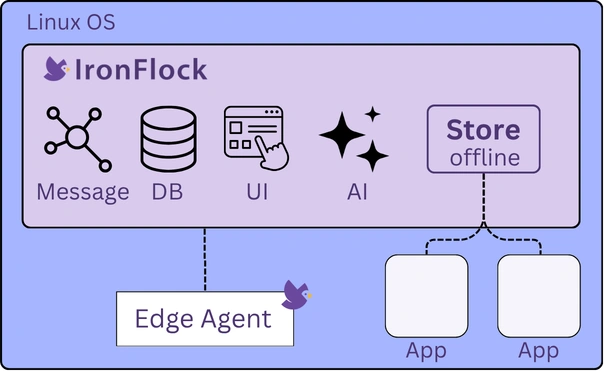
Hardware
The Appliance hardware is negotiable and is typically provided by the OEM or machine manufacturer. IronFlock provides the software stack and pre-configures the system on the chosen hardware before shipment. Typically, a medium-sized industrial edge PC (4 cores, 8 GB RAM) is sufficient to run the entire stack along with additional applications. Contact the IronFlock team to discuss hardware requirements for your use case.
Syncing Apps from the Online Store
The Appliance includes a local App Store — a private app catalog and container registry that serves apps to devices on the local network. You can populate this local store by syncing apps from the public online IronFlock Store, provided the Appliance has an internet connection available at sync time. No permanent internet connection is required; a temporary connection is sufficient to pull the apps you need.
Prerequisites
- An account on the public ironflock.com platform.
- Your appliance account is connected to your ironflock.com account (see Linking Accounts). The instance owner’s admin account is connected automatically.
How App Sync Works
┌────────────────────┐                       ┌────────────────────┐
│  Online IronFlock  │  ◄──── account ─────► │  Appliance         │
│  Store (cloud)     │      connection       │  local Store       │
└────────────────────┘                       └────────────────────┘
         │                                            │
   apps available to                          sync button shown
the connected account instead of install- Open the local App Store — When the Appliance has an active internet connection, the App Store shows all apps that are available to your connected ironflock.com account on the online platform.
- Sync the apps you need — Instead of an Install button, each app shows a Sync button. Clicking it downloads the app — including its container images and metadata — from the online store into the local store.
- Add devices — Once synced, the app is fully available in your local store and you can add devices to it normally, with no internet connection required.
Update Workflow
When a new version of a synced app is published on the online store, a Sync button will appear again for that app. Connect the Appliance to the internet briefly, sync the updated release, and then roll it out to your devices through the standard app upgrade flow.
This design gives you full control over what enters your network — nothing is downloaded automatically, and the internet connection is needed only during the sync step.
Limitations
- Single master account for AppStudio — The Appliance can host an AppStudio environment for one master account only. App development is scoped to a single organization.
- Limited scale — The Appliance is sized for a bounded set of machines in one location. Fleets that span multiple sites or tens of thousands of devices are better served by the cloud or a private cloud deployment.
- AI services require outbound LLM access — See Private Cloud for options when the Appliance has no internet access at all.
Contact Us
Appliance deployments are configured in partnership with the IronFlock team. Contact us to discuss your hardware, machine count, and branding requirements.