SCADA
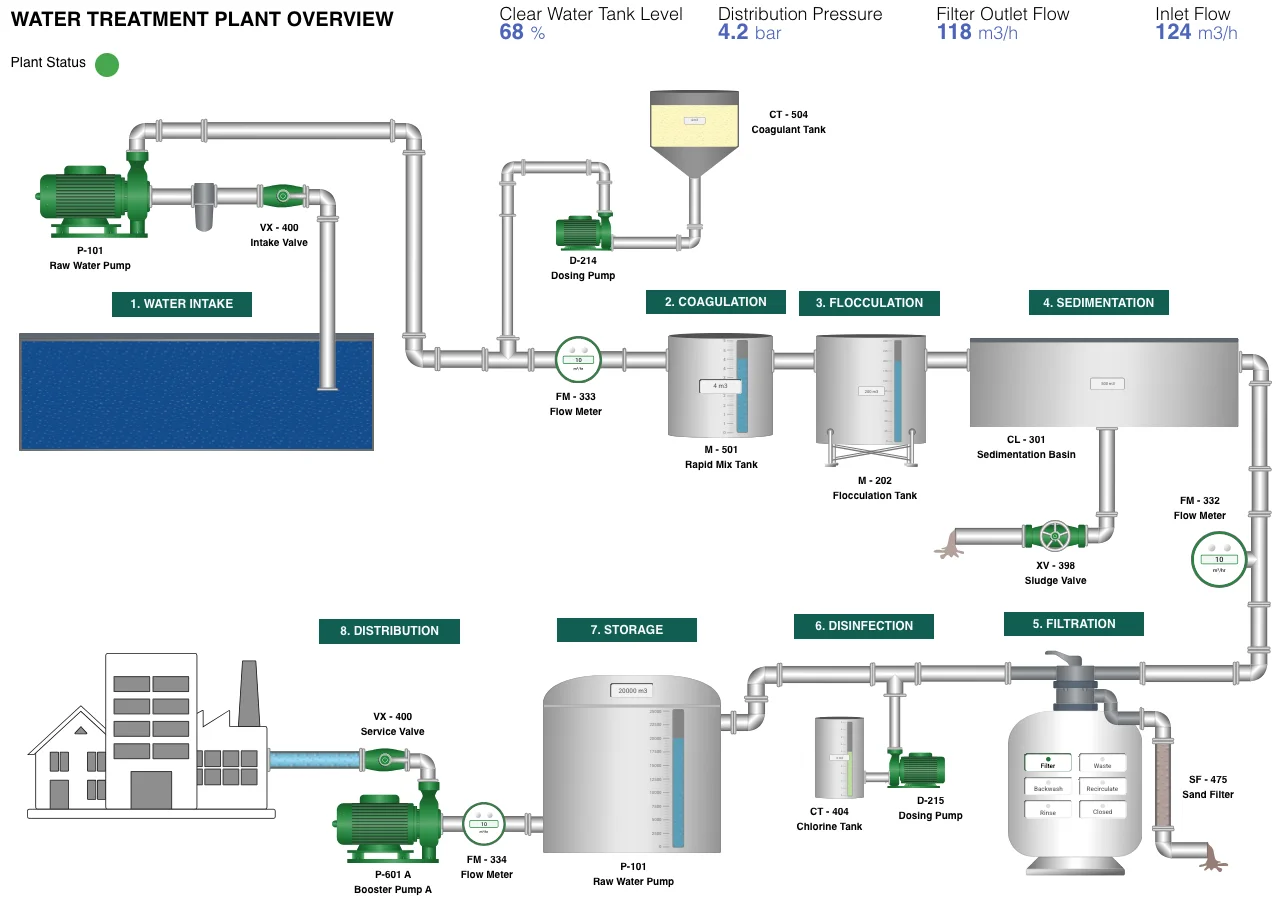
IronFlock implements SCADA functionality through its distributed architecture: lightweight data collector apps run at the edge to interface with PLCs and industrial hardware, all collected data is stored in a per-project time-series database, and the Board Studio app provides a full dashboard builder for creating SCADA visualizations on top of that data.
Architecture
PLCs / Sensors / Hardware
        ↓
  Data Collector Apps (edge devices)
        ↓
     FleetDB (time-series storage)
        ↓
  Board Studio (SCADA dashboards)
        ↓
  Control Channel (back to edge devices)
Data Collection at the Edge
Each edge device runs one or more data collector apps — small, containerized applications that speak the native protocol of the connected hardware. Because these are standard Docker containers, any protocol or driver can be supported:
- Modbus TCP/RTU — Connect to Modbus-compatible PLCs, sensors, and actuators
- OPC UA — Interface with OPC UA servers on industrial controllers
- MQTT — Subscribe to MQTT brokers on the local network
- BACnet — Collect data from building automation systems
- Custom protocols — Write a collector in any language for proprietary or niche hardware
A collector app reads values from the connected hardware — registers, tags, topics — and writes them to FleetDB. The data is automatically stored as time-series telemetry in the project’s TimescaleDB database, tagged by device and app.
This approach keeps the edge layer simple and modular. Each collector app is responsible only for the protocol it speaks. There is no monolithic gateway or driver framework to configure — just small, focused apps that each handle one integration.
Direct PLC Access
Because collector apps run directly on the edge device, they can access PLCs and hardware on the local network without any cloud roundtrip. A Modbus collector on an IronFlock device talks directly to PLCs on the same subnet. Data is buffered locally and synced to FleetDB when connectivity is available — devices continue collecting even when offline.
SCADA Dashboards with Board Studio
Once data flows into FleetDB, the Board Studio app provides a browser-based dashboard builder for creating SCADA screens. Board Studio connects directly to the project’s time-series database and offers:
- Widget library — Gauges, charts, tables, indicators, maps, and more
- Real-time updates — Dashboards update live as new data arrives
- Multi-device views — Combine data from multiple edge devices and collector apps on a single dashboard
- Configurable layouts — Arrange widgets freely to build process overviews, equipment status screens, or operational dashboards
Dashboards are accessible from any browser — no desktop software or VPN required.
Board Layout Options
There are three major layout modes you can use in SCADA boards, each suited to different visualization needs. For a detailed reference of all layout properties (Grid Snap, Overflow, Scale to Fit, Fixed Width/Height), see the IoT Dashboards Layout documentation.
-
Grid Snap off with overflowX / overflowY Widgets are positioned freely on the canvas. The SCADA design does not scale with the window size, but it can extend beyond the bottom and right edges of the viewport. Users may need to scroll to see the full layout. This is useful when you need a large canvas that matches a fixed physical layout (e.g., a factory floor plan) without distortion.
-
Grid Snap off with Scale to Fit Widgets are positioned freely, but the board has a limited display area whose aspect ratio you define. The entire layout scales proportionally with the screen size. No scrolling is needed. This mode is ideal for control room screens or kiosk displays where the dashboard must fill the screen cleanly at any resolution.
-
Grid Snap on (no overflow, no Scale to Fit) The grid should be configured with a fine resolution (many rows and columns). When SCADA symbols are placed, they automatically get Fixed Width and Fixed Height activated, which locks their size so they are not distorted by responsive rescaling. This keeps the SCADA layout stable in position and proportion, while everything around the symbols remains responsive. See the Layout documentation for details on Fixed Width/Height and how they interact with Grid Snap.
Mixing SCADA Symbols with Other Widgets
SCADA symbols and traditional chart widgets can be freely combined on the same board. This means you are not limited to pure process diagrams — you can place line charts, bar charts, gauges, tables, maps, or any other widget right next to your SCADA symbols.
A common pattern is to build a multi-board SCADA application with a navigation sidebar listing multiple sites or subsystems. Each entry links to a dedicated board showing the SCADA process diagram and live data charts for that site. This way, a single Board Studio project can serve as a complete multi-site SCADA control center — with navigation, process visualizations, and analytical charts all in one place.
AI-Assisted Dashboard Creation
The IronFlock AI can help create and configure dashboards through conversation. Instead of manually placing and configuring each widget, you can describe what you want:
- “Create a dashboard showing temperature and pressure for all devices in the Berlin plant”
- “Add a line chart comparing motor RPM across the last 24 hours”
- “Configure an alert indicator that turns red when tank level drops below 20%”
The AI understands the available data in your project’s FleetDB and can generate dashboards, add widgets, and configure data bindings on your behalf. This significantly reduces the time to go from raw data collection to a working SCADA screen.
Bidirectional Control Channel
IronFlock is not limited to data collection and visualization. The platform also supports a control channel back to edge devices, enabling actions to be triggered from SCADA dashboards.
If an edge app exposes control functionality — such as writing to PLC registers, toggling relays, or adjusting setpoints — these actions can be invoked from the dashboard. This enables common SCADA control patterns:
- Manual control — An operator clicks a button on the dashboard to open a valve, start a motor, or acknowledge an alarm
- Alert-driven actions — When an alert fires, the operator can respond directly from the alert notification with a predefined action (e.g., shut down a pump when temperature exceeds a threshold)
- AI-initiated control — Optionally, the IronFlock AI can be authorized to invoke control actions automatically in response to data patterns or alerts, closing the loop between monitoring and actuation
The control channel uses the same secure communication path as data collection. Commands travel from the dashboard through the IronFlock message broker to the edge device, where the app executes the action on the connected hardware.
How Control Works
- An edge app registers control endpoints — functions that accept parameters and perform actions on connected hardware
- These endpoints are visible in the dashboard as callable actions
- A user (or AI) triggers an action from the dashboard UI
- The command is routed to the edge device and executed by the app
- The result is reported back to the dashboard
This keeps the control logic where it belongs — in the edge app, close to the hardware — while allowing centralized triggering from dashboards, alerts, or AI agents.
Comparison with Traditional SCADA
| Aspect | Traditional SCADA | IronFlock SCADA |
|---|---|---|
| Protocol drivers | Monolithic, vendor-specific | Modular Docker apps, any language |
| Dashboard builder | Desktop engineering tool | Browser-based Board Studio |
| Data storage | Proprietary historian | Open TimescaleDB (SQL queryable) |
| Remote access | VPN required | Built-in secure tunneling |
| AI integration | None | Natural language queries, AI-assisted dashboards, AI-triggered control |
| Adding new protocols | Vendor dependency, license cost | Deploy a new collector app |
| Multi-site management | Separate servers per site | Single control plane |