Device Groups
Device groups let you organize devices and perform bulk operations. A device can belong to multiple groups.
Overview
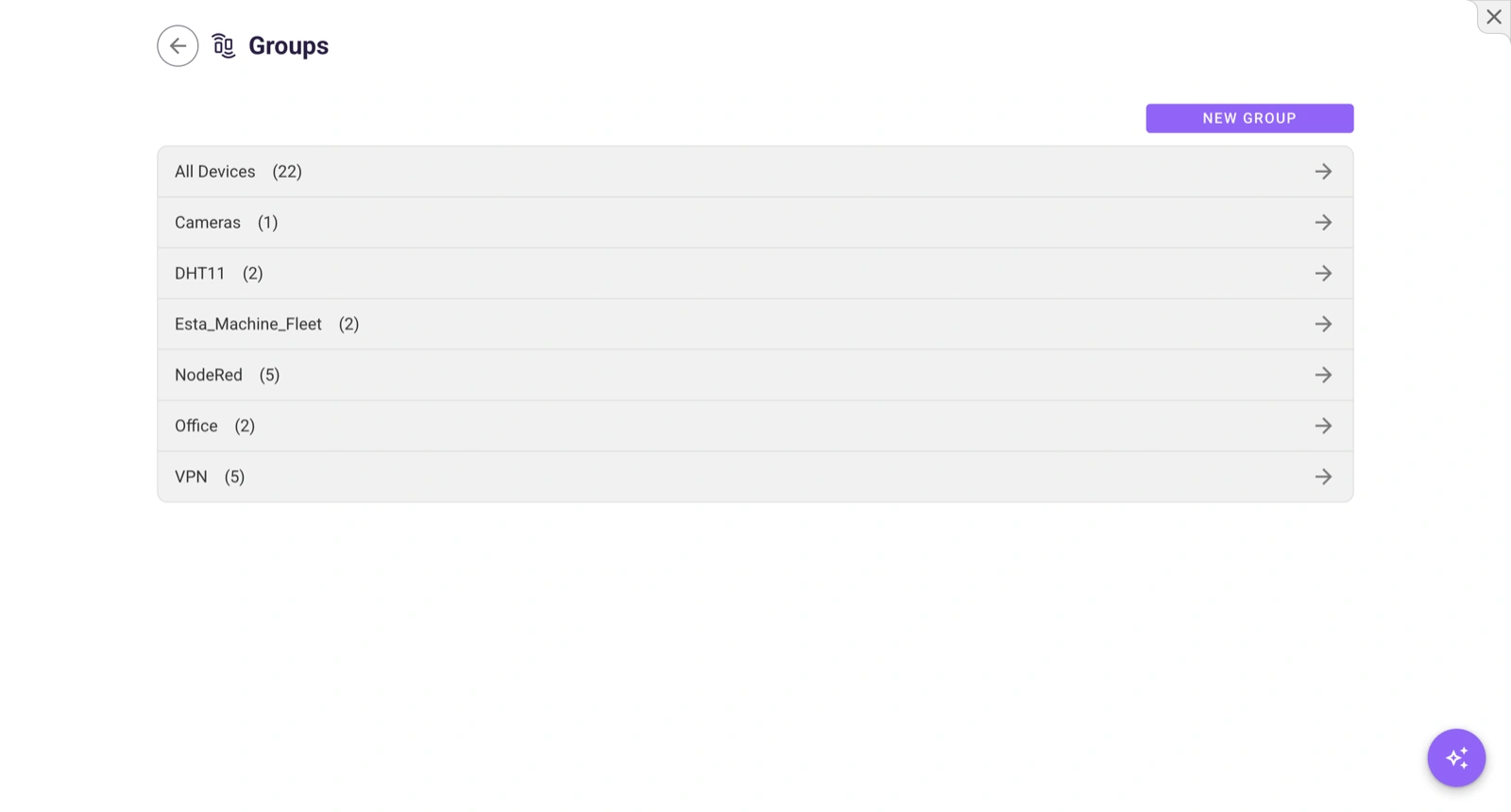
Inside a project, switch between Devices and Groups using the sidebar navigation. An All Devices group is created by default, containing every device in the project.
The group view shows:
- A map of all devices in the group (green = online, red = offline)
- The list of installed group-level apps
- Connectivity history for all group members
Create a Group
- Open the Groups tab in your project sidebar.
- Click CREATE GROUP.
- Enter a name and optional description.
Add Devices to a Group
- Click on a group name to open its settings.
- Click Add device.
- Select devices from the dropdown (only devices in this project are available).
Devices can belong to multiple groups. Removing a device from a group does not delete the device itself.
Group Apps
Install an App on a Group
- In the group view, click INSTALL IOT APP.
- Select the app and click Install.
The app is deployed to all devices in the group. When new devices are added to the group, they automatically receive the group’s apps.
Manage Group Apps
The group’s app panel shows:
- App name, version, and status across group members
- Controls to start, stop, or remove the app from the entire group
- Environment variable editor (click the pencil icon to update parameters across all group devices at once)
Mass Parametrization
When you update app parameters at the group level, the changes apply to all devices in the group simultaneously. This is ideal for:
- Setting a common data collection endpoint
- Updating AI model parameters
- Changing sensor thresholds across an entire project
Parameters can be set even when devices are offline — they are applied when the device reconnects.
Connectivity History
The connectivity panel shows a timeline for each device in the group, with color-coded bars indicating when each device was online or offline.
Group Privileges
Assign privileges at the group level to control who can manage the group and its devices. Available permissions: update, grant privileges, and delete.
Delete a Group
Open Group maintenance and click DELETE. This removes the group but not the individual devices — they remain in the project.