IoT Alerts
IronFlock includes a built-in alarm system that evaluates live telemetry from your IoT devices and triggers notifications when defined conditions are met. This gives you real-time visibility into the health and behaviour of every machine and group in your project.
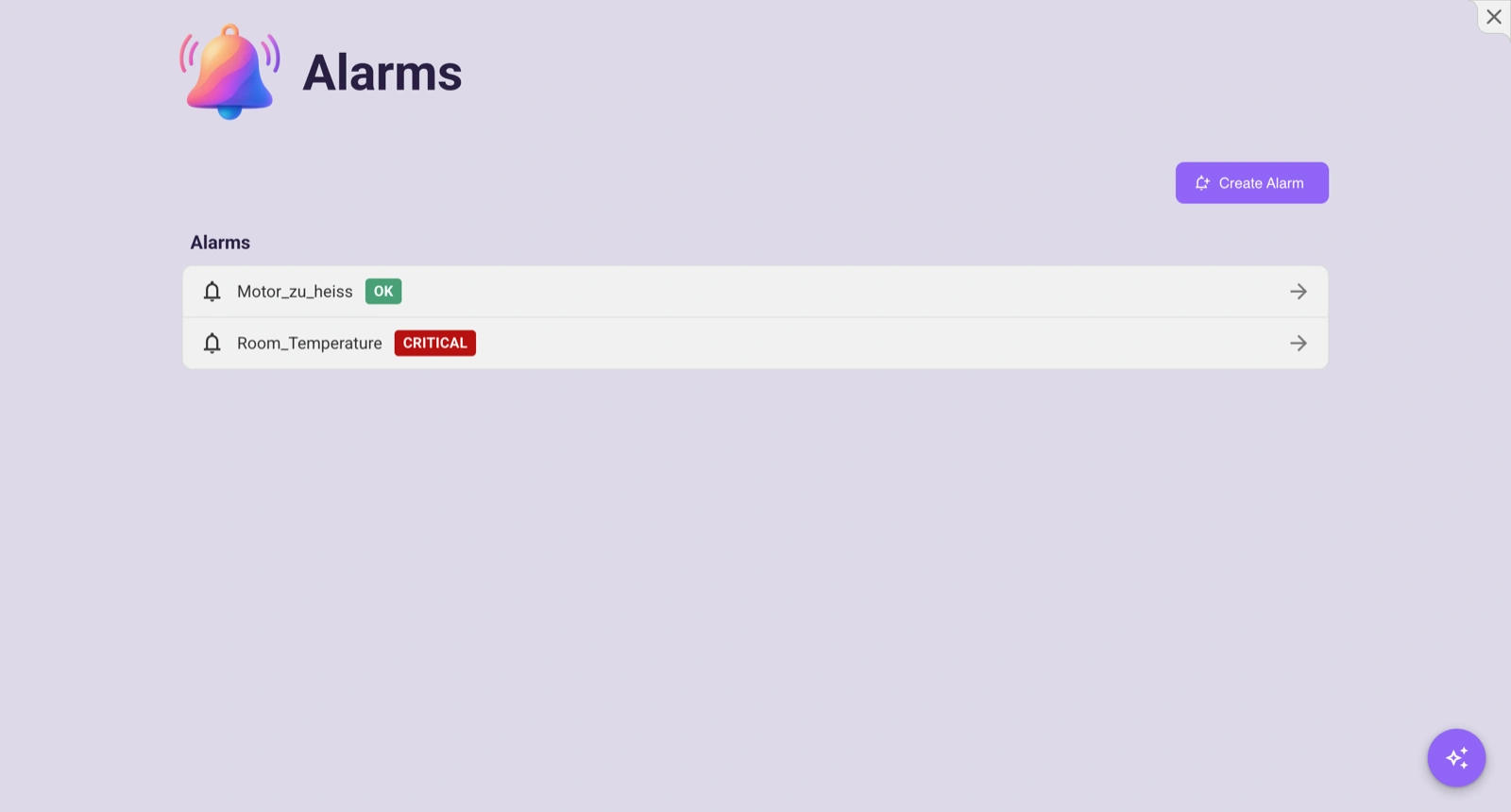
Alarms are created and managed from the Alarms app, which is installed by default in every IronFlock project.
How Alarms Work
Each alarm monitors a specific data table from one of your apps and evaluates incoming data against conditions you define for each severity level.
To create an alarm, click Create Alarm in the alarms panel, give it a name, and configure the three sections described below.
Trigger Configuration
The trigger configuration defines what data to watch and when to fire.
- Select a data source — Pick an app and table from the schema dropdown. This is the live telemetry table the alarm will observe.
- Define conditions per severity level — For each severity (Critical, Major, Minor), define one or more filter conditions on the table columns (e.g.
temperature > 85). The alarm evaluates incoming data against these filters and sets its status to the highest matching severity. - Auto-resolve — When enabled, the alarm automatically returns to OK when the condition is no longer met. When disabled, the alarm stays in its triggered state until manually reset.
Alarm States
An alarm’s status reflects the highest severity condition currently matched:
| Status | Meaning |
|---|---|
| OK | No conditions are currently met |
| Minor | A minor threshold has been breached |
| Major | A major threshold has been breached |
| Critical | A critical threshold has been breached |
The alarm panel shows each alarm with a coloured status badge (green for OK, orange for Minor, red for Major/Critical, grey if not yet evaluated).
Assessment
The assessment section lets you manually review and annotate an alarm:
- Status override — Manually set the alarm’s displayed status to OK, Minor, Major, or Critical, regardless of the actual trigger state. The original status is still shown in parentheses. This is useful when you’ve investigated an alarm and want to mark it as acknowledged or downgraded.
- Comment — Add a free-text note explaining the assessment (e.g. “Sensor recalibrated, false positive”).
- Reset — Clear the alarm’s current status and assessment, returning it to its default evaluated state.
Notifications
Configure where alarm notifications are delivered when a condition is triggered:
- Email — Enter one or more email addresses (comma-separated, up to 20). Each recipient receives a notification when the alarm fires.
- SMS — Enter one or more phone numbers in international format (e.g.
+49 123 456789, comma-separated, up to 20).
Alarm Value
When an alarm is triggered, the alarm value section shows the actual data point that caused the trigger. This helps you immediately understand what went wrong without needing to look up the raw telemetry.
Managing Alarms
From the alarms panel you can:
- Create a new alarm with a unique name
- Activate / deactivate an alarm with the on/off toggle — deactivated alarms stop observing data
- Edit the trigger configuration, assessment, or notification settings
- Reset an active alarm to clear its status
- Delete an alarm permanently (with confirmation dialog)