IoT Dashboards
The Board Studio goes far beyond traditional dashboards. It is a full no-code application UI builder that lets you create rich, multi-page user interfaces — complete with page navigation, control buttons, filter elements, lists, forms, embedded content, and much more. While it includes all the chart and gauge widgets you would expect from a dashboard tool, the interfaces you can build are not limited to data visualization. You can design complete operator panels, interactive control screens, and custom workflows — all without writing a single line of code.
You build interfaces by dragging and dropping widgets onto a canvas, configuring them through a settings panel, and linking pages together with navigation elements. Board Studio is installed by default in every IronFlock project.
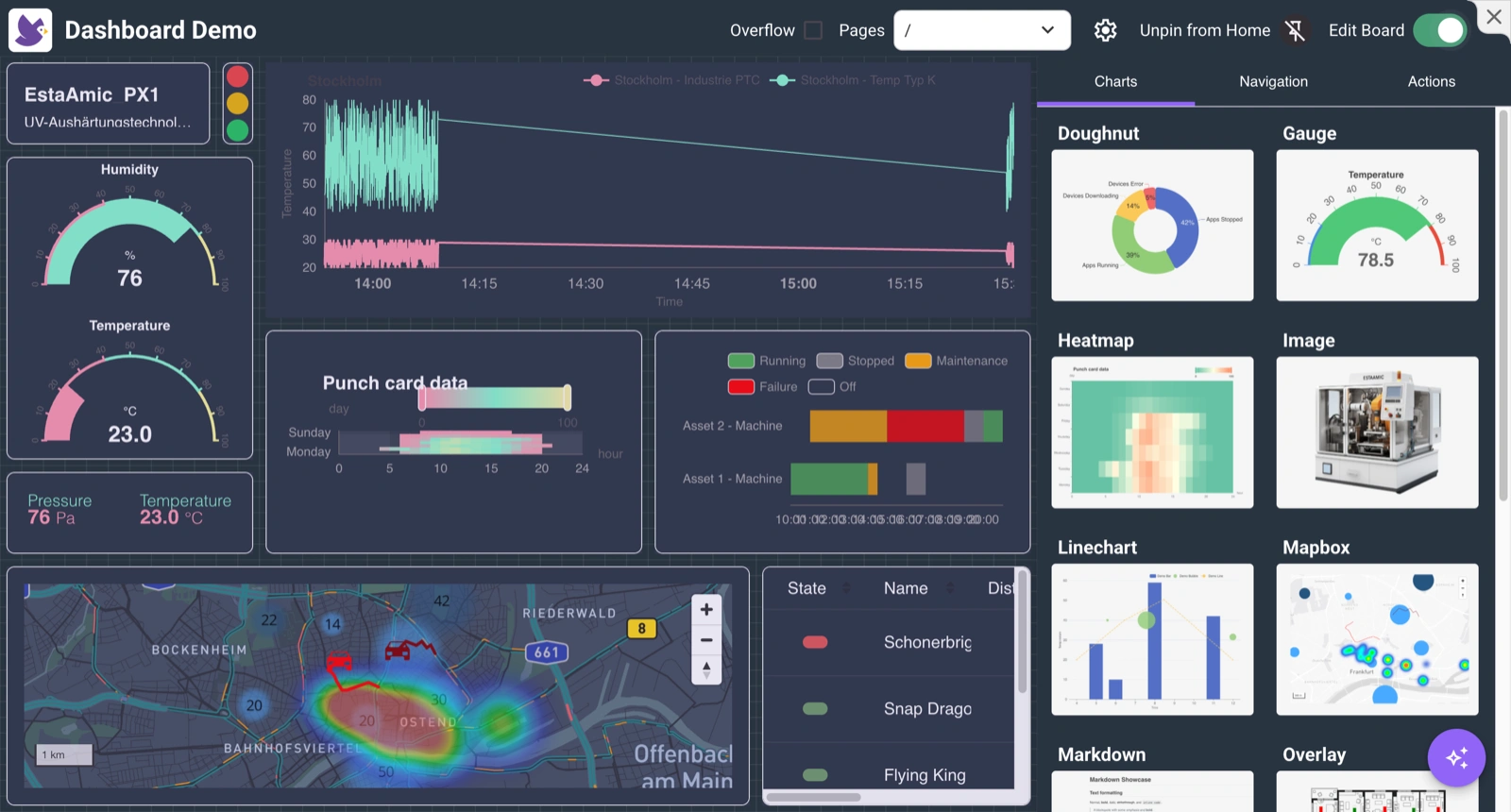
What You Can Build
- Standard & Advanced Charts — Track metrics and time-series data. Line charts, bar charts, gauges, heatmaps, doughnuts, and more.
- App Navigation — Build multi-page boards with smooth routing and sidebar menus or tab bars.
- Embed — Bring external dashboards, device UIs, camera streams, or websites directly into your board.
- Actions — Send commands or control signals to edge devices straight from the board.
- Split Charts — Automatically generate one chart per device, location, or category from a single configuration.
- Forms — Record manual data entries with full history tracking and smart update patterns.
- Filters — Let users filter data across all widgets at once using dropdowns and date pickers.
- Agentic AI — Add AI agents to your board that interact with your app data through natural language.
Why Boards
- All-in-one — Visualize, control, and interact in a single place, no separate tools needed.
- Customizable — Arrange widgets any way you like on a free-form grid. Resize, reposition, and layer them freely.
- Secure — Remote access and device control are handled through authenticated tunnels.
- Scalable — Works the same for one device or an entire project.
How Boards Work
A board connects directly to your app’s data in the project database. It is not tied to a specific device — it shows aggregated data from all devices running the app in your project.
Data flows from your devices in real time: the edge component sends data through the IronFlock messaging layer into the project’s database. Your board receives updates instantly — there is no polling or manual refresh. Widgets update with sub-second latency from edge to screen.
Developer Boards vs. User Boards
- Developer boards are created by the app developer and ship with the app. Every user who installs the app sees the same board layout automatically.
- User boards are created by you within your own project using the board builder. You can mix data from multiple installed apps into a single custom dashboard.
Accessing a Board
Once an app with a board is installed on your project, the app icon appears on your project’s home panel. Click it to open the board.
Building a Board
Open the board builder from your project. From there you can:
- Add widgets — Pick a widget type from the widget panel and drag it onto the canvas.
- Resize and position — Drag the edges of any widget to resize it, or drag the widget itself to reposition it on the grid.
- Configure a widget — Click a widget to open its settings panel. Select the data source, set labels and units, and adjust display options.
- Add pages — Create multiple pages and link them with navigation widgets for multi-screen dashboards.
- Apply a theme — Choose a light or dark theme and set global colors from the board settings panel.
Changes are saved automatically as you build.