Access Control
IronFlock uses a fine-grained privilege system to control who can read, edit, and manage assets within your projects. Privileges are tracked per user, per asset, and are fully versioned over time.
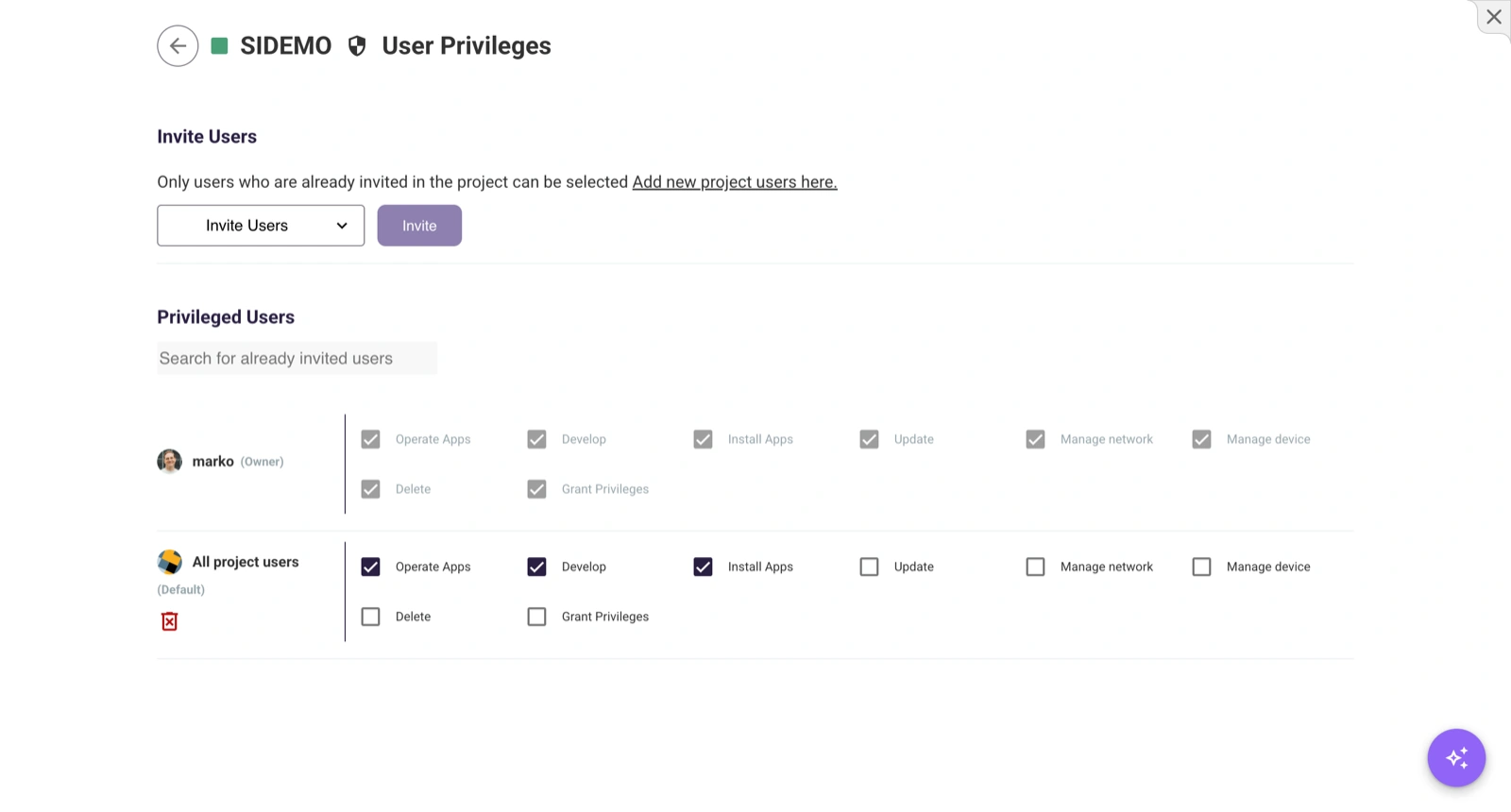
How Privileges Work
Ownership
Only projects and apps have an ownership concept. The owner of a project is a superuser: they automatically have full control over all assets within that project — devices, groups, boards, and data backends — regardless of individual asset-level settings. Even when other users add devices to a project, the project owner retains superuser access to those devices.
The owner of an app similarly has full control over that app’s code, releases, and distribution.
Fine-Grained Per-Asset Privileges
Within a project, you can grant fine-grained permissions to individual project members on four asset types:
| Asset Type | Description |
|---|---|
| Device | A physical or virtual edge device |
| Device Group | A logical grouping of devices within a project |
| User Board | A data visualization dashboard |
| Data Backend | A time-series database provisioned per project |
Privileges can only be assigned to users who have already been invited into the project. You cannot grant asset-level privileges to users outside the project.
Default Project Member Privileges
Within a project you can define default privileges that apply to all project members for each asset type. This lets you, for example, give every project member view access to all boards by default, without granting access individually.
Project Privileges
The project owner has full superuser access to the project and all of its assets. Other users can be granted the following project-level permissions:
| Permission | Description |
|---|---|
| Create Devices | Add new devices to the project |
| Create Groups | Create new device groups |
| Data Access | Query the project database directly: the SQL query console, data exports, read-only database credentials, and saving custom transforms |
| Update | Edit project name, description, and metadata |
| Grant Privileges | Assign or modify permissions for other users |
| Delete | Permanently delete the entire project |
Device Privileges
| Permission | Description |
|---|---|
| Operate | Send control commands and interact with the device |
| Develop | Access development features and containers on the device |
| Install | Install and remove apps on the device |
| Update | Edit name, description, and other metadata |
| Network | Configure network settings (Wi-Fi, Ethernet) |
| Maintain | Access maintenance features, terminal, and system diagnostics |
| Delete | Permanently remove the device from the project |
| Grant | Assign or modify privileges for other users on this device |
Device Group Privileges
| Permission | Description |
|---|---|
| Update | Edit group name, description, and membership |
| Delete | Permanently remove the group |
| Grant | Assign or modify privileges for other users on this group |
App Privileges
| Permission | Description |
|---|---|
| Read | View the app, its description, and dashboards |
| Develop | Access source code, edit the app, and use App Studio |
| View Code | Read-only access to the app’s source code |
| Update | Edit app metadata (name, description, image) |
| Delete | Permanently delete the app |
| Grant | Assign or modify privileges for other users on this app |
| Release | Publish new releases to the App Store |
| Use | Install the app in a project (required for private apps) |
| App Store | Manage App Store listing and visibility |
Board and Data Backend Privileges
| Permission | Description |
|---|---|
| Update | Edit content or configuration |
| Grant | Assign permissions to other users |
| Delete | Permanently remove the board or data backend |
Inviting Users
To grant privileges to another user within a project:
- Navigate to the Privileges section of any asset (project, device, group, board, or data backend).
- Click Invite User.
- Search for the user by email address.
- Select the permissions to grant.
- Click Invite.
Only users who are already members of the project can be granted asset-level privileges within that project.
Ownership Transfer
Transferring a Project
A project owner can transfer ownership to another IronFlock user. The new owner receives full superuser access; the previous owner’s access then depends on any remaining privileges they hold in the project.
To transfer project ownership, open the project settings and navigate to the Privileges tab.
Transferring an App
An app owner can transfer ownership to another IronFlock user. Ownership transfer hands full control of the app’s code, releases, pricing, and distribution to the new owner.
To transfer app ownership, open the app in App Studio and navigate to the Privileges tab.
Device Transfer and Claiming
Transferring a Device to Another Project
A device can be transferred from one project to another. This moves the device — along with its configuration — to the target project. Only users with Create Devices permission in the target project can initiate or receive a transfer.
Claimable Devices
A device can be marked as claimable. When a device is claimable, any IronFlock user who knows that device’s ID can actively claim it — transferring it into a project where they hold Create Devices privilege. This is useful for:
- Self-provisioning workflows — field technicians register devices without needing admin involvement
- Out-of-box activation — end customers scan a device ID (e.g. from a QR code label) to bring the device into their own project
Once claimed, the device moves into the claimer’s project and is no longer claimable.
Privilege Inheritance
- Project owner — Automatically has full control over all devices, groups, boards, and data backends within the project. No separate per-asset grants are needed.
- Default member privileges — Apply to all project members for a given asset type unless overridden by a specific individual grant.
- Device-level privileges are independent of group-level privileges. Assigning privileges on a group does not propagate to individual device settings.
Audit Trail
Every privilege change is recorded with:
- Who made the change (grantor)
- What changed (which permissions were added or removed)
- Who was affected (the user whose privileges changed)
- When the change occurred
This temporal audit trail is available in the Audit Logs section and is useful for compliance reviews and security investigations.