Pages & Navigation
IronFlock boards are not limited to a single screen. You can create multiple pages and move smoothly between them using navigation widgets — giving your users simple, clickable ways to jump from page to page.
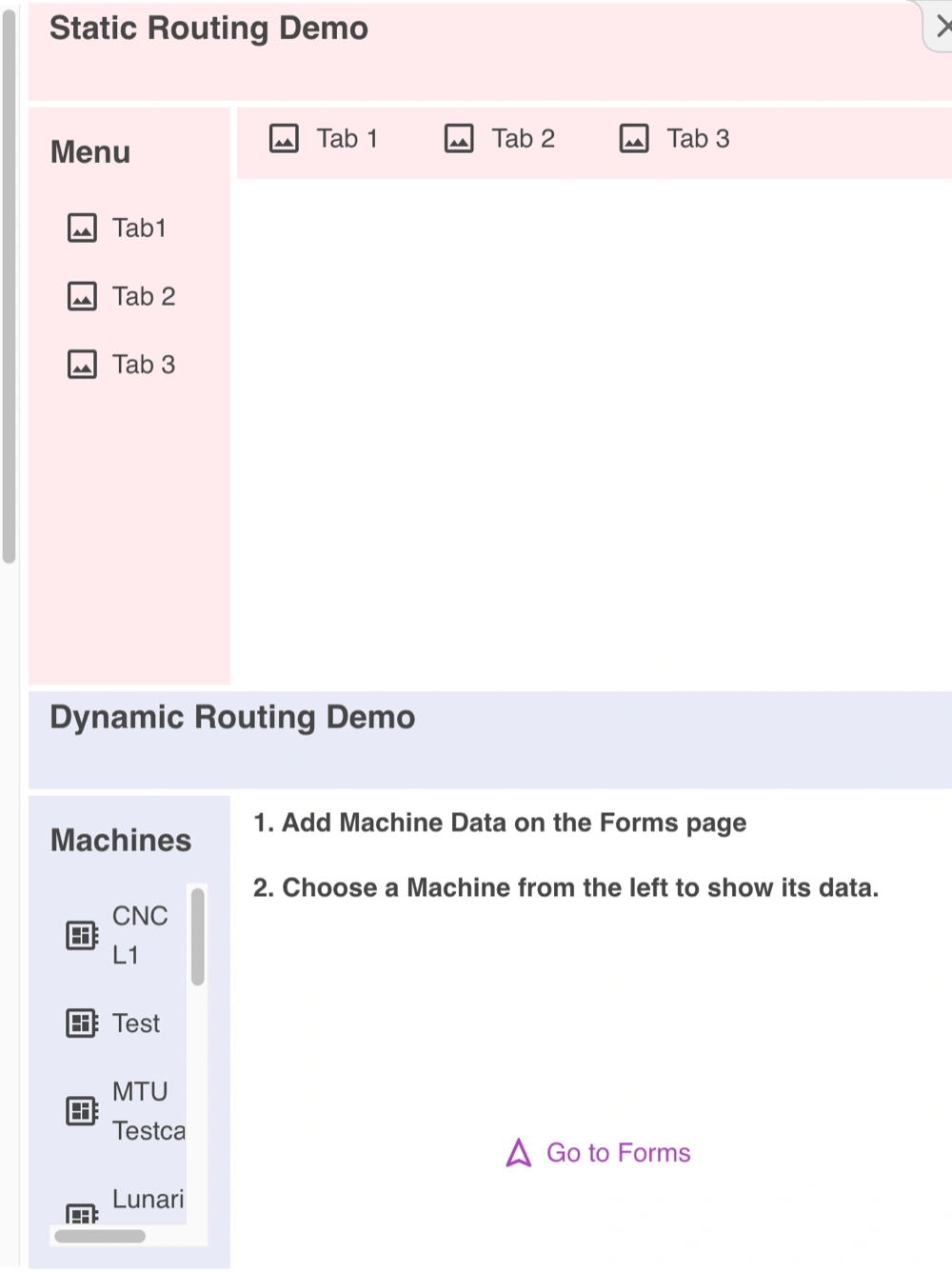
How Navigation Works
Navigation is powered by routes. A route is the part of the URL after .../home/ and tells IronFlock which page to display.
- Add a new page → a new route is created for it.
- A navigation widget changes the route in the address bar → IronFlock instantly shows the linked page.
Navigation Widget Types
There are three navigation widgets to choose from:
- Side Navigation — a vertical sidebar menu, ideal for top-level sections. Can show static items or generate items dynamically from your data (e.g. one entry per machine in your project).
- Tab Bar — a horizontal tab bar for switching between sub-views within a page.
- Navigation Button — a single button that links to a specific page.
Relative vs. Absolute Routes
Navigation widgets support two styles of routing:
- Absolute routes start with a slash (e.g.
/settings/device1) and always navigate to exactly that route. - Relative routes have no leading slash (e.g.
device2/profile) and replace the last segment of the current route.
Example: If you are on /settings/device1 and navigate to device2/profile, the new route becomes /settings/device2/profile.
Note: /settings and /settings/ are not the same:
- From
/settings, navigating todevice1results in/device1 - From
/settings/, navigating todevice1results in/settings/device1
Dynamic Routing
Instead of creating a separate page for every device in your project, you can use a wildcard route with *.
Example: Create a page at /assets/*. Any route like /assets/device1, /assets/device2, or /assets/anything will display that single page.
Inside the page, widgets can read route segments to filter their data automatically. If the URL is /assets/device1, the segments are:
- Segment 1 →
assets - Segment 2 →
device1
Configure a widget to filter by segment 2 and it will automatically show data for whichever device is in the URL. Navigate to /assets/device2 and the same page adapts and shows device2’s data — no duplicate pages needed.
With navigation widgets and dynamic routing your board becomes modular and project-aware. Whether you have 5 devices or 5,000, you can navigate and manage them all without clutter or complexity.