Forms
Not every piece of information comes from a sensor or an automated system. Sometimes you need a human touch — and that is where the Forms widget comes in. Think of it as your digital clipboard inside IronFlock. Use it whenever you want to capture data manually, such as:
- Recording scrap counts on the production line
- Entering readings from an old-school pH sensor
- Logging inspection notes during a factory walk
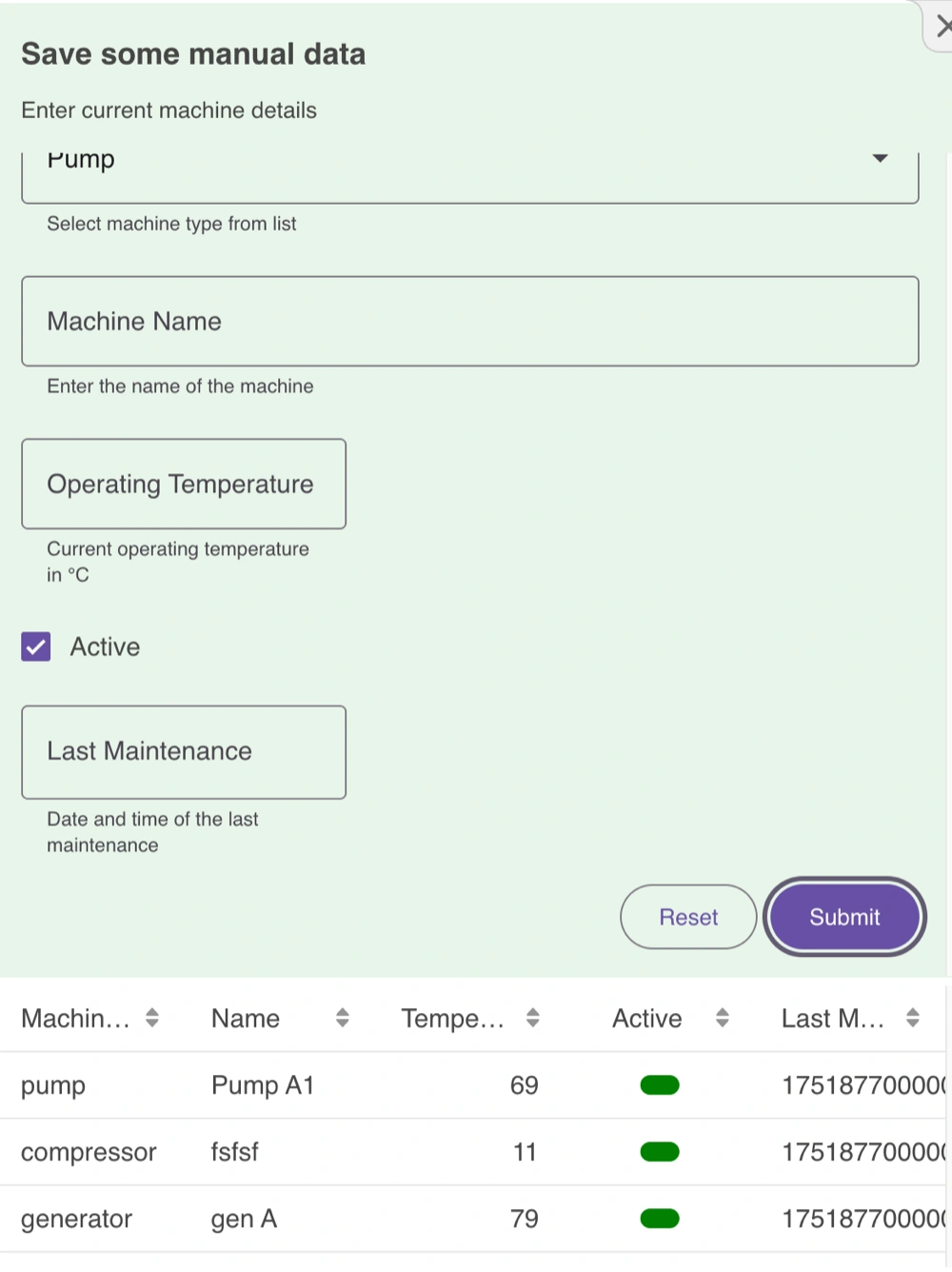
How Forms Work
When someone submits a form, the data is stored in a designated table in your app’s database. Each field in the form maps to a column in that table, and all fields are saved together as a new row when the form is submitted.
What you configure in the form widget:
- A title for the form
- One or more fields, each with a label, input type, and the table column it should write to
- Optional validation rules and default values per field
Available field types: dropdown (select from a list), text, number, checkbox, and date/time picker.
Where Does the Data Go?
Every form submission adds a new row to the table. This gives you a full history of all entries — nothing is overwritten or lost.
Make sure you configure all required fields so each new row is complete and consistent.
Keeping Track of the Latest State
If you are using forms to track the current state of machines or assets — like the latest inspection result per machine — IronFlock can show you just the newest entry for each item. The app developer enables this by telling the table which columns identify an entity, for example the machine name.
When this is set up, turn on the latest toggle in a widget’s filter settings and the widget shows only the current row per machine or asset. IronFlock determines which row that is every time the widget loads, so a late or corrected submission never leaves the board showing a stale value. The full submission history remains available if you want to review it.
Deleting Data
IronFlock uses an append-only approach to deletion as well. Instead of removing a row, you submit a new entry that marks the record as deleted. Widgets on the board are set to hide deleted entries — so they disappear from the dashboard but remain in the database for history and audit purposes.
Summary
With the Forms widget you get:
- Easy manual data entry directly from the board
- Automatic history tracking for every submission
- Clean patterns for showing current state and hiding deleted records
All without leaving your IronFlock board.