Actions & Device Control
With action widgets you can send commands directly to apps running on your edge devices — turning your board into an interactive control centre, not just a visualisation tool.
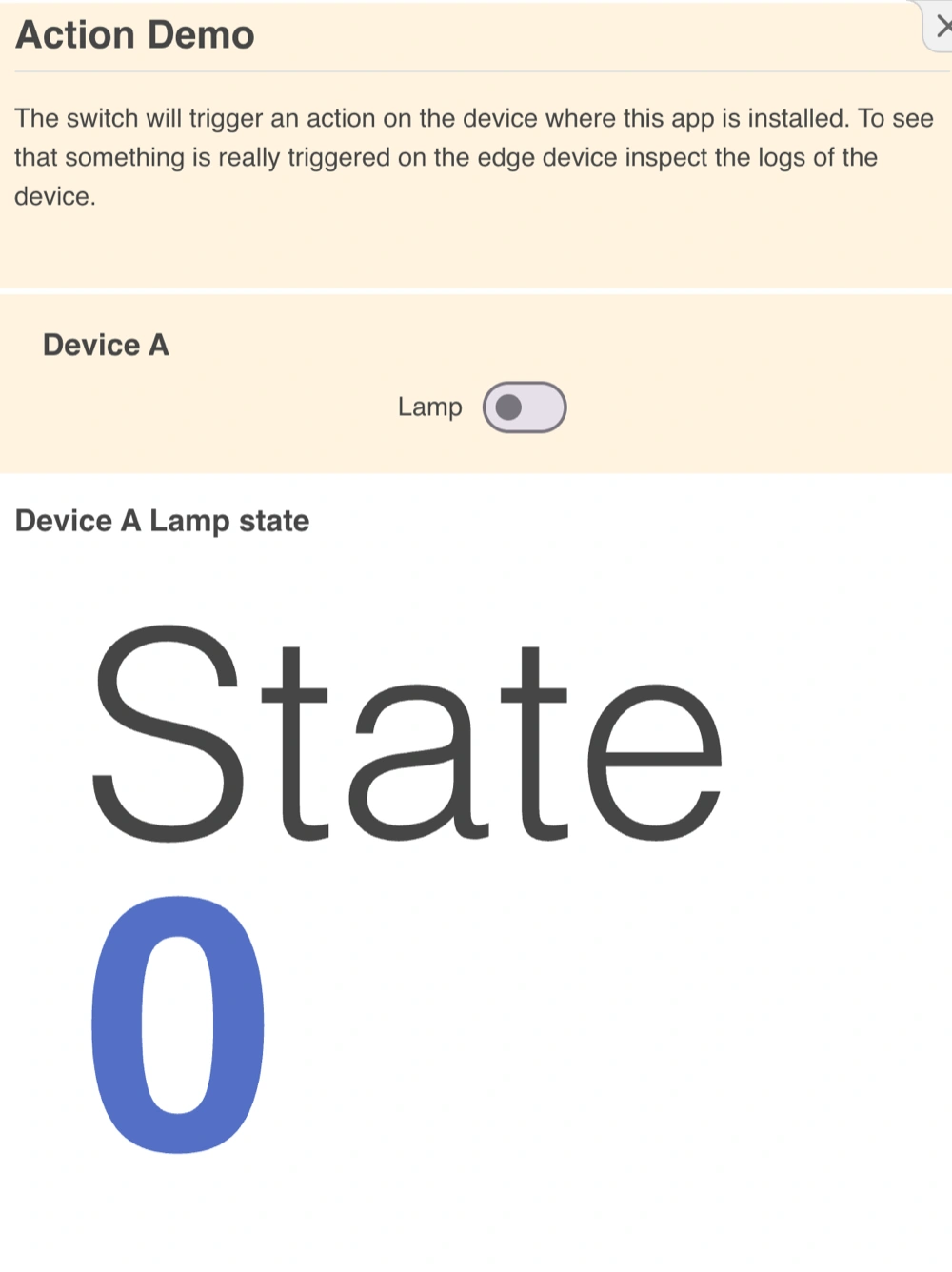
What You Can Control
You can trigger actions on your machines straight from the board, such as:
- Turn a warning lamp on or off
- Activate or deactivate a motor
- Start or stop a conveyor belt
- Trigger alerts or notifications
How to Configure an Action Widget
- Choose an app — Select the app that exposes the functionality you want to control.
- Choose the topic — Select the specific action to trigger within that app.
- Choose a device — Pick the edge device you want to send the command to.
- Optional: use the split feature — Automatically generate a control switch for each device in a group. Perfect for projects where every device needs its own control.
Tip: Connect the on/off state of the action widget to a data column from your app. This way the switch always reflects the true current state — even if someone triggered the action directly on the machine or from a different board.
How It Works
Each app runs in its own message routing realm, keeping communication between apps isolated and secure. When you toggle an action widget, it publishes a message to the target app’s realm on the selected device. The edge component on that device receives the message and performs the physical action.
User-created boards can access the message routing realms of all authorised apps in the project. This lets you safely control multiple devices and multiple apps from a single board without cross-app conflicts.