Rich Content
The Markdown widget lets you add formatted text, images, and live values to your board. Use it to create help sections, display status messages, build documentation pages, or add context to your data — all with simple markdown.
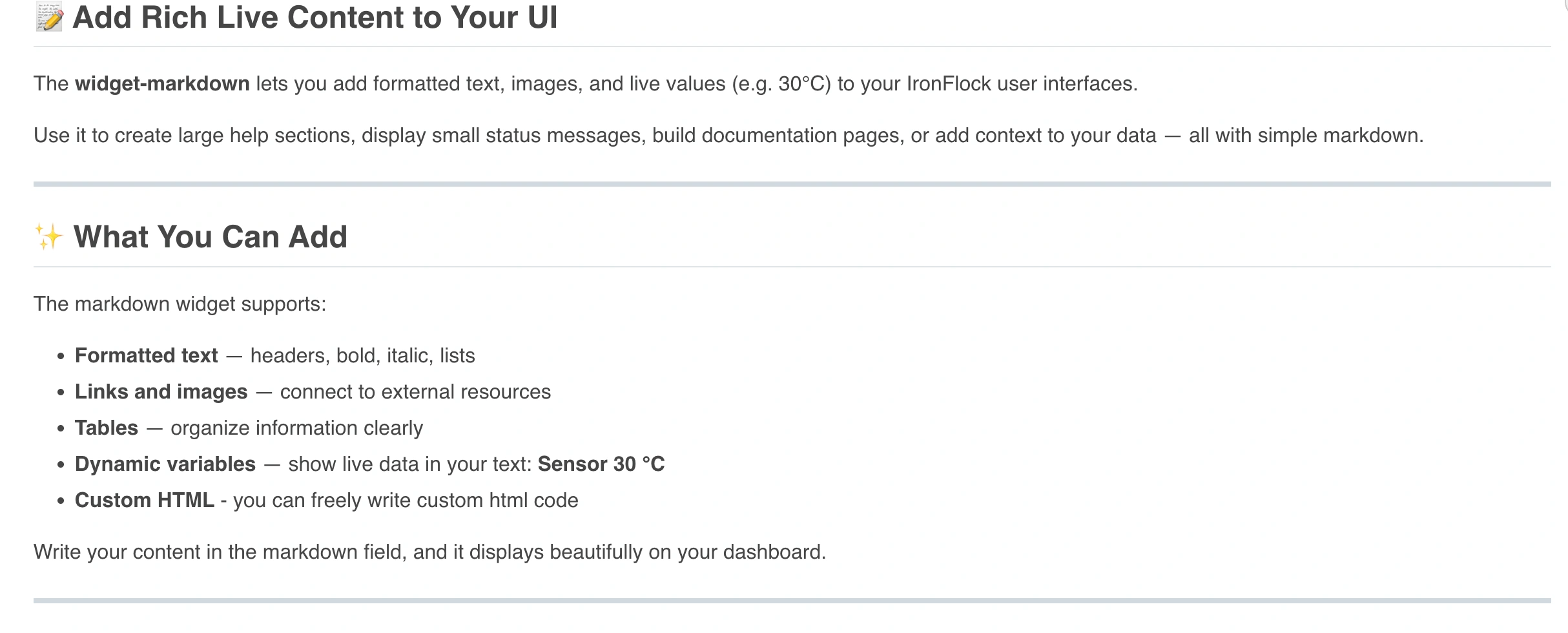
What You Can Add
- Formatted text — headings, bold, italic, lists
- Links and images — connect to external resources or display visuals
- Tables — organise information clearly
- Dynamic variables — show live data inline in your text, e.g. Sensor 23 °C updated in real time
- Custom HTML — mix in raw HTML for custom layouts, colors, or styling when markdown alone isn’t enough
Basic Formatting
Markdown uses simple characters to format text:
# Headingfor a large header**bold text**for bold*italic text*for italics-or numbers for lists
Links: text in square brackets followed by the URL in parentheses — [IronFlock](https://www.ironflock.com)
Images: same as a link but starting with ! — 
Tables: use vertical bars | to separate columns.
You don’t need to memorise all of this — markdown is intuitive and you’ll pick it up quickly as you use it. For a full reference see the official Markdown guide.
Dynamic Variables
This is where the markdown widget becomes powerful: you can inject live data directly into your text.
In the markdown content, wrap a variable name in double curly braces: {{variableName}}
Then in the widget’s Variables configuration, add an entry with:
- Label — the variable name (must match exactly what you wrote in the text)
- Value — connected to a live data column from your app
Example: Write Current temperature: {{temp}}°C in the markdown field, then add a variable with label temp connected to your device’s temperature column. The widget renders Current temperature: 23°C and updates it live as new data arrives.
Use Cases
- Welcome pages — introduce users to the board with context and instructions
- Status summaries — show key metrics embedded in descriptive text
- Help documentation — embed how-to guides directly on the board
- Dynamic messages — combine static copy with live values that adapt to current conditions