Device Settings
Click on any device in the project sidebar to open its settings panel. This is your central hub for monitoring, configuring, and maintaining the device.
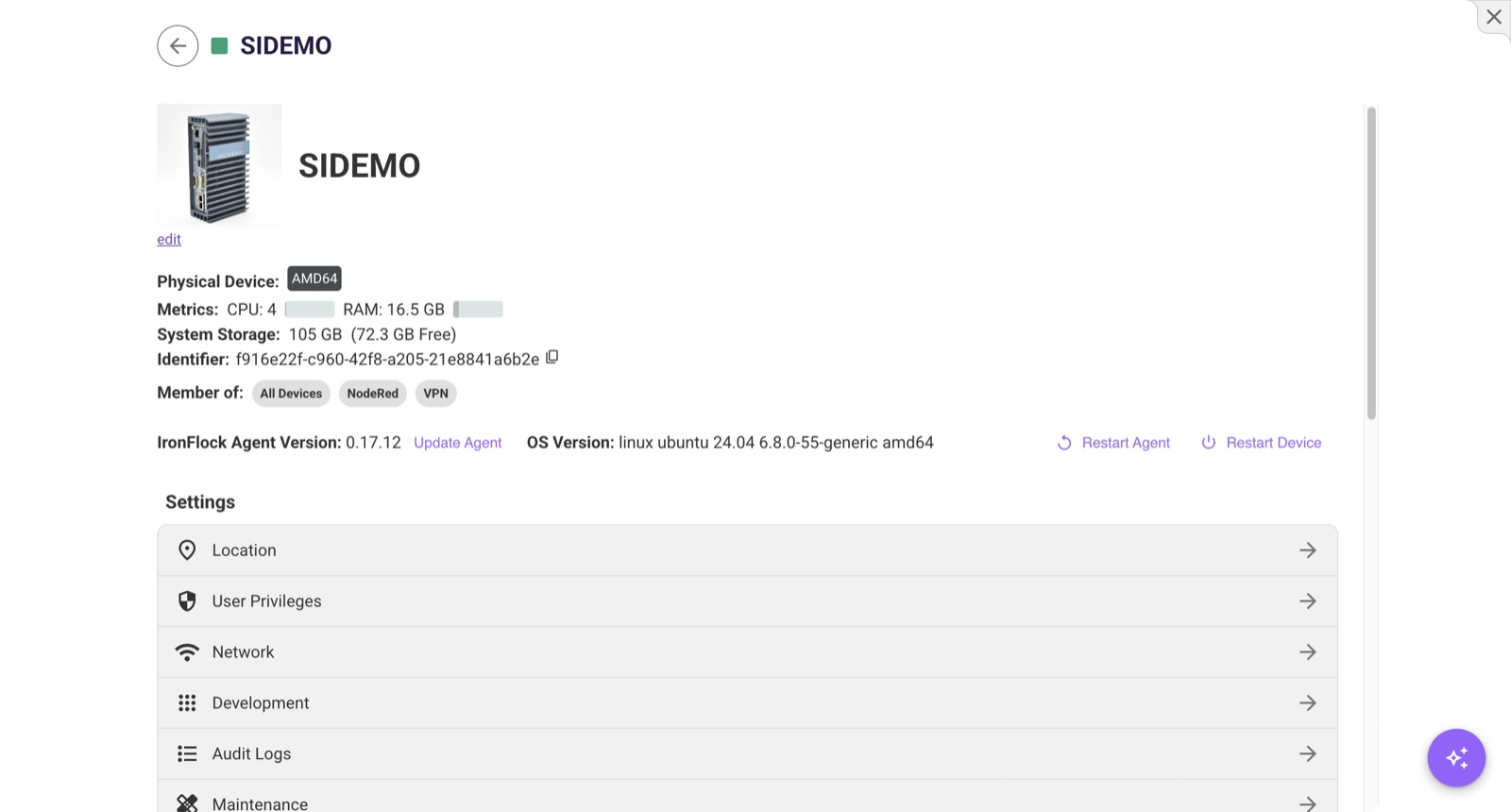
Device Overview
The top of the settings panel shows at a glance:
- Device info card — Device name, description, and icon (all editable with update privileges). You can upload a custom image by dragging it onto the icon area.
- System resources — CPU usage, RAM usage, total disk space, and app storage partition. Usage bars turn red when a resource exceeds 90%.
- Identifier — The unique serial number of the device. Click to copy it.
- Group memberships — Tags showing which device groups this device belongs to. Click a tag to navigate to that group.
Device Controls
Below the overview, a control panel provides hardware-level actions:
| Action | Description | Requirement |
|---|---|---|
| Update Agent | Update the IronFlock agent to the latest version. Shows current and available version. | Maintain privilege, device online |
| Restart Agent | Restart the IronFlock agent process on the device. | Maintain privilege, device online |
| Restart Device | Trigger a full remote reboot of the device. | Maintain privilege, device online |
| Update FlockOS | Download and install a new operating system image. This is a two-step process (download, then install) with a progress indicator. | Maintain privilege, device online |
For virtual devices, Start and Stop buttons appear instead to control the virtual machine.
Settings Menu
The settings navigation provides access to seven configuration sections:
Location
Set the physical location of the device on an interactive map. You can:
- Drag the marker to set coordinates visually
- Enter an address to look up coordinates automatically
- Enter latitude and longitude manually (7 decimal places)
- Look up the address from coordinates
Location data is saved to the device record and visible on the project’s map view. Requires update privileges.
Location settings are not available for virtual devices.
Device Privileges
View and manage access permissions for this specific device. The device creator has full privileges by default.
| Permission | Description |
|---|---|
| Operate | Use the device and its apps |
| Develop | Access development containers and cloud IDE |
| Install | Add or remove apps on this device |
| Update | Edit device metadata (name, description, location) |
| Network | Configure WiFi and Ethernet settings |
| Maintain | Restart, update OS, manage Docker images, transfer ownership |
| Delete | Permanently remove the device |
| Grant | Assign permissions to other users for this device |
See User Privileges for the full privilege system.
Network
Configure the device’s wireless and wired network connections. The device must be online.
WiFi
A table lists all detected WiFi networks with signal strength, encryption type, frequency, channel, and whether the network is already known (saved).
- Scan — Trigger a fresh WiFi network scan on the device.
- Add WiFi — Enter an SSID, password, security type (WPA/WPA2, WPA3-Enterprise, WEP, or none), and priority level. Networks with higher priority are preferred when multiple known networks are available.
- Remove WiFi — Delete a saved network from the device.
- Restart WiFi — Restart the WiFi interface.
WiFi networks configured through IronFlock are stored on the device and persist across reboots. The current IP address is shown at the top.
Ethernet
A table lists all Ethernet interfaces with MAC address, IPv4, and IPv6.
- Refresh — Fetch the current list of Ethernet devices.
- Edit (per interface) — Switch between DHCP (automatic) and static IP configuration. For static IPs, enter the IPv4 address and subnet prefix (0–32, default 24).
Requires network privileges.
Development Containers
Lists all development-stage containers on the device with their current state (running, starting, building, publishing, or transferring).
- Stop — Halt a running development container.
- View Logs — Expand a real-time log terminal for the container.
- Open IDE — Click the code icon to open the cloud development environment for that app.
- Delete — Remove a development container from the device.
Requires develop privileges on the device.
Audit Logs
A searchable timeline of all changes made to this device:
- Filter by aspect: name, description, image, architecture, privilege changes, app state changes, OS upgrades, tunnel events, releases, and more.
- Filter by date range (defaults to the last 3 days).
- Each entry shows the timestamp, who made the change, what was changed, and the new value.
The log supports infinite scroll and loads more entries as you scroll.
Device Maintenance
Administrative tools for the device:
- Transfer Ownership — Change the device owner to another project member. Requires maintain privileges.
- Make Device Claimable — Toggle whether the device can be claimed by another user using its identifier. When enabled, the serial number is highlighted and can be shared. Requires maintain privileges.
- Docker Images — View all Docker images stored on the device including repository, tag, ID, creation date, and size. Use Prune All to remove all unused images, or Prune Simple to remove only dangling (untagged) images and free up disk storage. Only visible when the device is online.
- Download Config File — Re-download the
.flockconfiguration file for this device, useful for re-provisioning or backup.
Host Terminal
A full interactive terminal session on the device, powered by a web-based terminal emulator. You can execute commands directly on the device’s host operating system.
- Supports standard terminal features: cursor navigation, clickable URLs, copy-on-select.
- The device must be online. If the device is disconnected, a message is shown instead.
Requires maintain privileges.
Apps on the Device
Below the settings menu, the panel lists all apps whose edge components are currently on the device. Each app entry shows:
- App name and icon
- Current state (running or stopped)
- An update badge if a newer version of the app is available
Click an app to open its per-device settings, where you can:
- View Live Logs — Real-time log output from the edge component.
- Edit Parameters — Adjust app-specific configuration values.
- Configure Remote Access — Manage port forwarding for the app.
- Update — Apply the latest app version to this device.
- Remove — Uninstall the app’s edge component from this device.
Add an App
Click the Add App dropdown to see all apps available in this project that are not yet on the device. Search by name and select an app to add its edge component. Requires install privileges.
Delete a Device
At the bottom of the settings panel, click Delete Device to permanently remove the device. A confirmation dialog appears — this action is irreversible. The device will be disconnected and removed from the project.
Requires delete privileges.